Introduction to basic Unix commands
This is the introduction to the basic shell commands.
Overview
Time estimation: 2H
Version: main
Last update: 2026-02-27
Questions:Objectives:
What is a command shell and why would I use one?
How can I move around on my computer?
How can I see what files and directories I have?
How can I specify the location of a file or directory on my computer?
Describe key reasons for learning shell.
Navigate your file system using the command line.
Access and read help files for
bashprograms and use help files to identify useful command options.Demonstrate the use of tab completion, and explain its advantages.
This tutorial will help you develop proficiency in the necessary Unix shell concepts.
What is a command shell?
On Unix, every user has a unique user name. When they log onto the system, they are placed in a home directory, which is a portion of the disk space reserved just for them. When you log onto a Unix system, your main interface to the system is called the Unix Shell. This is the program that presents you with the dollar sign ($) prompt. This prompt means that the shell is ready to accept your typed commands. It is often preceded by the user name as well as the current directory.
Unix commands are strings of characters typed in at the keyboard. To run a command, you just type it in and press the Enter key. We will look at several of the most common commands below.
Commands often have parameters, e. g. a file to work on. These are typed in after the command and are separated by spaces, e. g. less pi_results.txt opens the file pi_results.txt for reading.
In addition, Unix extends the power of commands by using special flags or switches. Switches are usually preceded with a dash (-), e. g. ls -lh.
List of commands
Command Description pwdprint current (working) directory lslist contents of the current directory ⤷ -llong (detailed) listing ⤷ -hwith human readable numbers cdchange to another directory mkdirmake a new directory mvmove or rename a file or directory cpcopy file ⤷ -rcopy directory tree (recursively) filedetermine file type echoprint a line of text headView the first 10 lines of a file sortSort lines of text files lessdisplay contents of a file (press q to quit) tailoutput the last part of a file ⤷ -ffollow appended data as the file grows greplist text lines containing a particular string of text ⤷ -voutput only non-matching lines wccount lines, words, and bytes in a file catconcatenate (combine) two or more files dfshow disk free information ⤷ -hwith human readable numbers findfind files in a directory tree mandisplay program manual for a command ps -xlist one’s own running programs / processes (extended list) killkill process ⤷ -9kill process immediately (SIGKILL=9) rmremove a file ⤷ -rremove a directory tree (recursively) rmdirremove an empty directory chmodchange mode (security permissions) of file or directory ⤷ ugo+-rwxuser (owner), group, other (world), add(+), remove(-), read, write, execute ./myprogramrun the local executable file myprogramsed 's/ab/cd/'transform text, e. g. replace all occurrences of ‘ab’ with ‘cd’ nanoCommand line text file editor ⤷ Ctrl-xBy using the key combination Ctrl-xin the editor, you can exit the editor and optionally save the file.wgetnetwork downloader (downloads files from the Web) gzipcompress a file gunzipuncompress a file *wildcard representing any combination of characters Places ~your home directory .current directory ..parent directory Pipes >send output to a file >>append (add) output to a file \|pipe output from one command as input to another
Tutorial
During this tutorial you will use many of the commands above. Your task is to identify the correct commands and execute them. Feel free to experiment. Take a look at the solution if absolutely necessary.
This tutorial is based on the tutorial that was created by the de.NBI Cloud Bielefeld administrators. The first two sections (01 and 02) describe how to access the workshop environment for this tutorial. Participants need a web browser and an active ELIXIR account.
Part 1
01 - Accessing SimpleVM
When accessing a Unix system running as a virtual machine in the cloud one would normally log into it via secure shell (ssh) and would be getting presented with a terminal. SSH also works with IP address, so you can specify the port with the flag -p.
For the sake of this tutorial the access route to the terminal is via web browser.
Every participant has access to a prepared virtual machine running a web-based development environment called Theia IDE.
Generate a new ssh key
You can generate a new public/private SSH key pair on your local machine.
Important
You can distribute your public key to other servers, but your private key must be kept secure and never shared.
After you generate the key, you can add the public key (e.g.
KEY.pub) to your account on GitHub.com to enable authentication for Git operations over SSH.ssh-keygenThis creates a new SSH key, using the provided email as a label. When you are prompted to “Enter a file in which to save the key”, you can press Enter to accept the default file location.
Please note that if you created SSH keys previously, ssh-keygen may ask you to rewrite another key, in which case we recommend creating a custom-named SSH key. To do so, type the default file location and replace id_ALGORITHM with your custom key name.
Enter a file in which to save the key (/home/YOU/.ssh/id_ALGORITHM):[Press enter]At the prompt, type a secure passphrase.
Enter passphrase (empty for no passphrase): [Type a passphrase]
Enter same passphrase again: [Type passphrase again]
Accessing Theia IDE
This workshop is powered by SimpleVM. Every participant should have received a mail containing the actual link to their VM. If you did not receive a mail containing a link to a VM, please contact your tutor.
After successful login the Theia IDE screen appears. The screen is usually divided into 3 sections: Editor pane in the center, file browser on the left, terminal at the bottom. This tutorial will primarily focus on the use of the terminal.
Hands On: Access your private VM
Access to your own private virtual machine works different from what is used here. You would usually run an SSH client to connect to the machine using a key file and would then be presented with a single terminal command prompt, e.g.:
Code In
ssh -i ~/.ssh/mykeyfile ubuntu@myprivatevm.example.com
02 - Opening a terminal window
If not yet open go to -> Terminal -> new Terminal to open a new terminal.
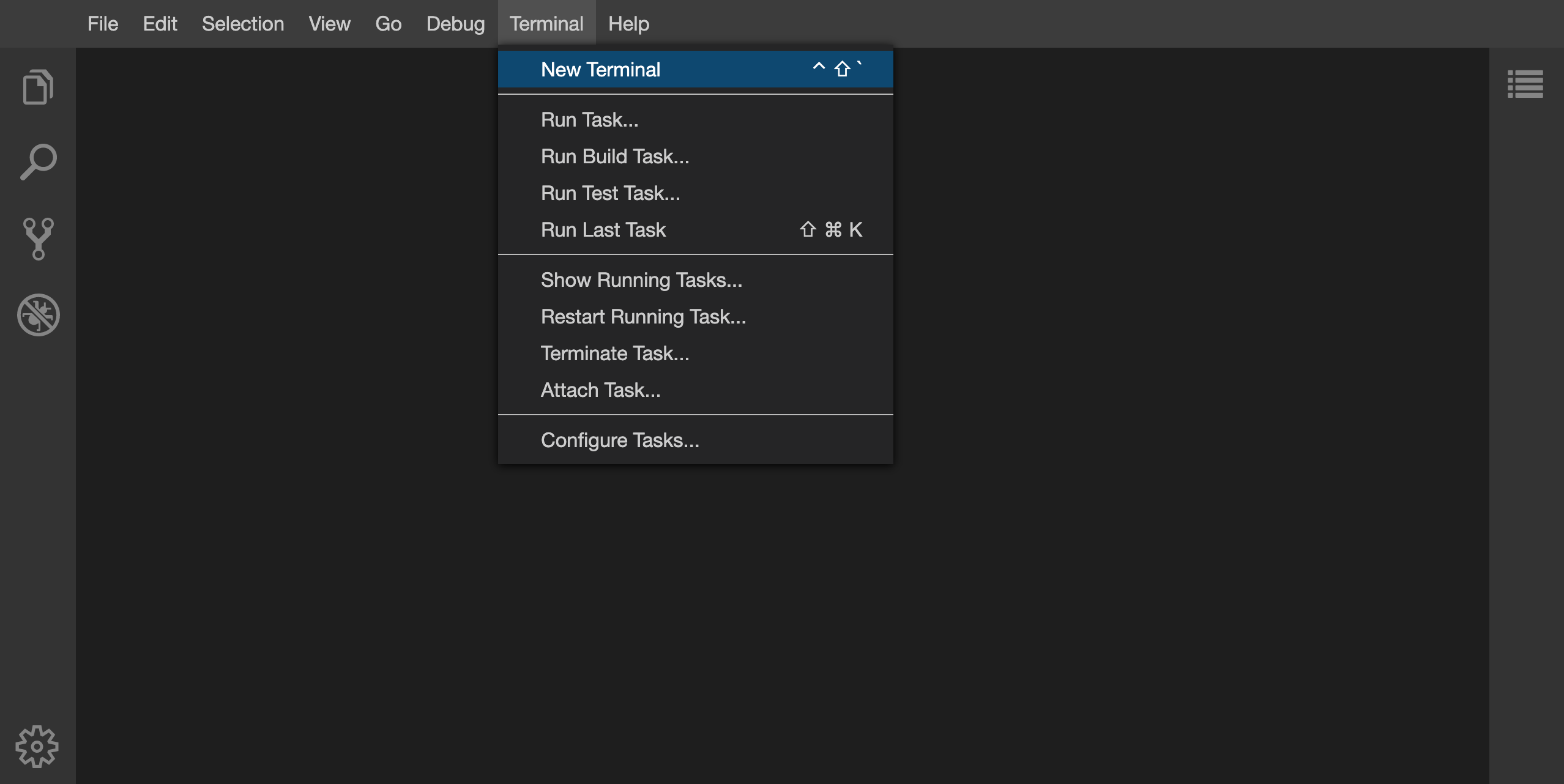
It is possible to have more than one terminal open at the same time.
03 - Creating a directory to work in
Before we actually start clone this github repository so we have all files in place we need for this small exercise.
cd ~
git clone https://github.com/deNBI/unix-course.git
This will create the directory unix-course within your user’s home directory.
We can now move on with the exercise.
Taks
- Open the manual page of the command
pwdby enteringman pwd.- Find out your current (working) directory. (1 command)
- If your current directory is not your home directory, please move to it. (1 command)
- Now create a directory called
pi_calculationand enter the new directory. (2 commands)- Confirm that your current directory has changed. (1 command)
Solution
pwd
cd ~
mkdir pi_calculation
cd pi_calculation
pwd
04 - Running a simple program
A simple program that (slowly) approximates the number pi is available as a file at ~/unix-course/calculate_pi.
Tasks
- Please copy this program into your current directory. (1 command)
- Inspect the file you just copied to get information about its file type. (1 command)
- Please make the file executable (for you as the owner only). (1 command)
- Now run the executable and watch how the pi approximation gets better over time. (1 command)
- Stop the running program by pressing the key combination
Ctrl+c.Solution
cp ~/unix-course/calculate_pi .
file calculate_pi
chmod u+x calculate_pi
./calculate_pi
05 - Running in background and saving output
We would like to save the results of the pi calculation program to a file instead of just displaying them on the screen.
Tasks
- Please run the pi executable again but this time send its output to a file called
pi_results.txtin the same directory. (1 command)- Open a second terminal and enter a command that allows you to watch the output lines being written to the results file. Note: Bear in mind that a new terminal always starts in your home directory. (2 commands)
- Stop following the results file. (1 key combination)
Solution
./calculate_pi > pi_results.txt
cd pi_calculation
tail -f pi_results.txt
# Ctrl+c
06 - Inspecting and terminating a running program
The pi approximation will probably run for about an hour but we would like to terminate it earlier.
Tasks
- List your own running programs. (1 command)
- Use the process ID (PID) of the still running pi calculation to terminate it. The PID is in the first column of the program list. (1 command)
- Verify that the pi calculation has stopped. (1 command or action)
- Inspect the contents of the results file that the pi calculation has generated. (1 command)
- Check the file size of the results file. (1 command)
- Check the free disk space available on your file system. (1 command)
Solution
ps -x
kill <id of the process>
ps -x     # or look at the first terminal
less pi_results.txt
ls -lh
df -h .
Part 2
07 - Extracting data from text files
Let’s extract adverbs from a list of English words available inside /usr/share/dict/words.
For this we need to install a small ubuntu package that contains english and german dictionary words.
Installing packages in ubuntu is fairly easy and can be done using the apt-get install command. However, we need root priviliges to install a package for the whole system.
This can be done by granting ourself root priviliges for the execution of one single command with sudo.
Please run the following command before we can proceed:
sudo apt-get install wamerican-small
Tasks
- Please move to your home directory. (1 command)
- Now create a directory called
fun_with_wordsand enter the new directory. (2 commands)- Filter the English words list for words ending in …fully and save them to a file named
fully.txtusing the command below. The$sign inside the search string ensures that only word endings are matched.- Take a look at the contents of
fully.txt. (1 command)- Repeat the same for the words ending in …ously as well as …ably and save them to their corresponding files. (2 commands)
- Calculate the word counts of all three files. (1 command)
Solution
cd ~
mkdir fun_with_words
cd fun_with_words
grep "fully$" /usr/share/dict/words > fully.txt
less fully.txt
grep "ously$" /usr/share/dict/words > ously.txt
grep "ably$" /usr/share/dict/words > ably.txt
wc ably.txt fully.txt ously.txt
08 - Processing the extracted data
Tasks
Convert all the adverbs inside the three files from the previous section into adjectives. Name the resulting files
able.txt,ful.txtandous.txt(3 commands)
adverb adjective …ably …able …fully …ful …ously …ous - Concatenate the contents of
able.txt,ful.txtandous.txtinto a single file calledadjectives.sorted.txt. Sort the lines alphabetically before saving. (2 commands with a pipe in between)- Take a look at the results. (1 command)
Solution
sed 's/ably/able/' ably.txt > able.txt
sed 's/fully/ful/' fully.txt > ful.txt
sed 's/ously/ous/' ously.txt > ous.txt
cat able.txt ful.txt ous.txt | sort > adjectives.sorted.txt
less adjectives.sorted.txt
09 - Downloading and compressing files
There are two common command-line programs for downloading data from the Web: wget and curl. Both of them are similar in basic functionality, but with some differences.
One can compress/decompress files in place:
gzip infile
gunzip infile
Alternatively, both gzip and gunzip can output their results to standard out using -c flag:
Tasks
- Please move to your home directory. (1 command)
- Now, download the file at seqs.fasta to the current directory using a network downloader. (1 command)
- Take a look at the contents of the file. (1 command)
- The downloaded file is an uncompressed text file of 30 Kilobytes in size. Please apply compression to the file so that it takes less disk space and check the effectiveness of the compression. (2 commands)
Solution
cd ~
wget "https://openstack.cebitec.uni-bielefeld.de:8080/unix-course/seq.fasta"
less seq.fasta
gzip seq.fasta
ls -l seq.fasta.gz
10 - Cleaning up
Tasks
- Please enter your home and list its contents. (2 commands)
- Please list the contents of the directory
fun_with_wordswithout moving into it. (1 command)- Now, delete all the files inside the directory
fun_with_words. (1 command)- Delete the directory itself. (1 command)
- The directory
pi_calculationhas to be cleaned up as well. This time, delete directory and contents in one go. (1 command)- Verify that both directories have been removed. (1 command)
- Remove the compressed text file. (1 command)
- That’s it! Congratulations! You have mastered the Unix command-line essentials!
Solution
cd ~
ls
ls fun_with_words
rm fun_with_words/*
rmdir fun_with_words
rm -r pi_calculation
ls
rm seq.fasta.gz
Part 3: Advanced Concepts
11 - Edit files
Instead of using a graphical user interface for editing files, you can directly manipulate files on the terminal.
Tasks
- Please move to your home directory. (1 command)
- Download the sars-cov-2 genome again (sars-cov-2-seq). (1 command)
- Open the file in an editor. (1 command)
- Remove all characters from the first line with the exception of the fasta id (>NC_045512.2). (typing/removing text)
- Save the file and exit the editor. (1 key combination and 2 keys)
- Output just the first 10 lines to ensure that the fasta header contains only the id now. (1 command)
Solution
cd ~
wget "https://openstack.cebitec.uni-bielefeld.de:8080/unix-course/seq.fasta"
nano seq.fasta
# Moving the caret and pressing backspace to remove the characters
# Ctrl+x, then type y to save the buffer and press enter to confirm the filename
head seq.fasta
Key Points
The shell gives you the ability to work more efficiently by using keyboard commands rather than a GUI.
Useful commands for navigating your file system include:
ls,pwd, andcd.Most commands take options (flags) which begin with a
-.Tab completion can reduce errors from mistyping and make work more efficient in the shell.
Contributions
Author(s): Christian Henke, Peter Belmann, Jan Krueger, Nils Hoffmann, Sebastian Juenemann, Viktor Rudko